Instructors Version Logo
latest

Robot Introduction

  • Model C
    • Functions
    • How to operate
  • Model D
    • Functions
    • How to operate

LET'S APPLY OUR KNOWLEDGE

  • Model C
    • Check robot status
      • Air
        • Air Purifier
        • Air Information
      • UVC
      • Control LED-bar
      • Sonar Sensor
      • RS View
    • Robot Autonomous driving
      • Manual Operation
        • Run TeleOP
        • Motion Ctrl
        • Emergency Stop
      • AMCL Pos
      • Navigation
        • Navigation
        • NaviRVIZ
        • Navigate Way Points
        • Navigate Trajectories
      • Mapping
    • Auto Charge
      • Parking C.S.
  • Model D
    • Check robot status
      • Air
        • Air Purifier
        • Air Information
      • UVC
      • Control LED-bar
      • Sonar Sensor
      • RS View
      • Sol / Pump
    • Robot Autonomous driving
      • Manual Operation
        • Run TeleOP
        • Motion Ctrl
        • Emergency Stop
      • AMCL Pos
      • Navigation
        • Navigation
        • NaviRVIZ
        • Navigate Way Points
        • Navigate Trajectories
      • Mapping
    • Auto Charge
      • Parking C.S.

How to operate

  • Model C
    • Using GUI
      • Start
      • Bringup
      • M-LRF
      • OP
      • Navigation
      • NaviRVIZ
      • WPCtrl
      • InitPos
      • Motion Ctrl
      • Run TeleOP
      • Sonar Sensor
      • Navigate Way Points
      • Navigate Trajectories
      • Parking C.S.
      • Air Information
      • Air Purifier
      • Configuration
      • Cam View
      • RS View
      • AMCL Pos
      • UVC
      • Control LED-bar
      • Ready
      • Mapping
      • RosBoard
    • Auto Run
      • Administrator’s manual
        • Install and use PM2
        • Set coordinates
      • User manual
        • How to start
        • Further explanation
  • Model D
    • Using GUI
      • Start
      • Bringup
      • M-LRF
      • OP
      • Navigation
      • NaviRVIZ
      • WPCtrl
      • InitPos
      • Motion Ctrl
      • Run TeleOP
      • Sonar Sensor
      • Navigate Way Points
      • Navigate Trajectories
      • Parking C.S.
      • Air Information
      • Air Purifier
      • Sol / Pump
      • Configuration
      • Cam View
      • RS View
      • AMCL Pos
      • UVC
      • Control LED-bar
      • Ready
      • Mapping
      • RosBoard
    • Auto Run
      • Administrator’s manual
        • Install and use PM2
        • Set coordinates
      • User manual
        • How to start
        • Further explanation
Instructors Version
  • Model C
  • Robot Autonomous driving
  • Navigation
  • Navigate Way Points
  • Edit on GitHub

Navigate Way Points

Driving by selecting a pre-registered waypoint from the drop-down menu

For illustrative purposes, the coordinates are given as name1, name2, and name3.


Go to name3 coordinates
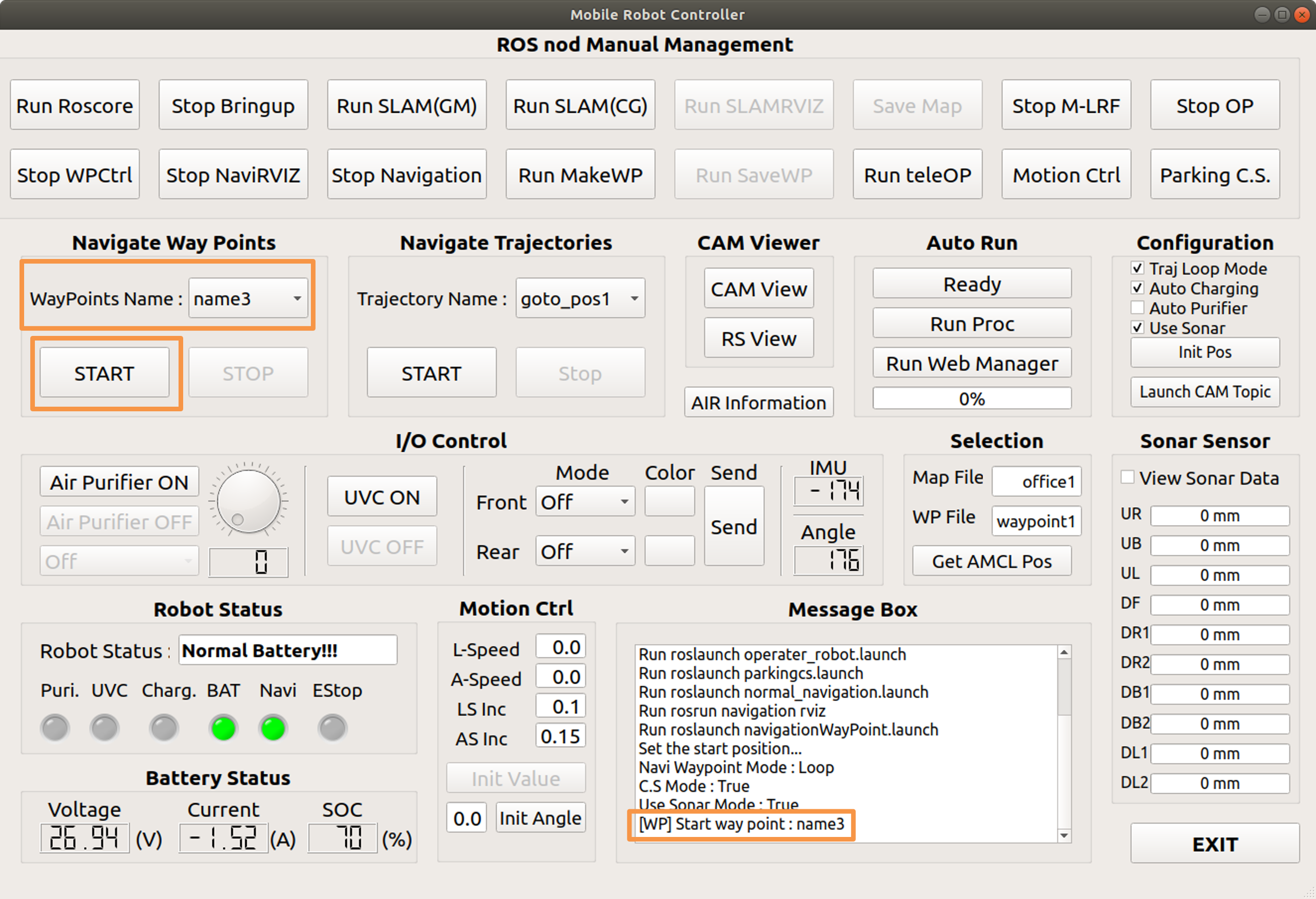
  • After selecting name3, press the start button. The start button is disabled, and the stop button is enabled.

  • When you arrive at your destination, the start button is enabled and the stop button is disabled.

  • It is displayed in the message box.


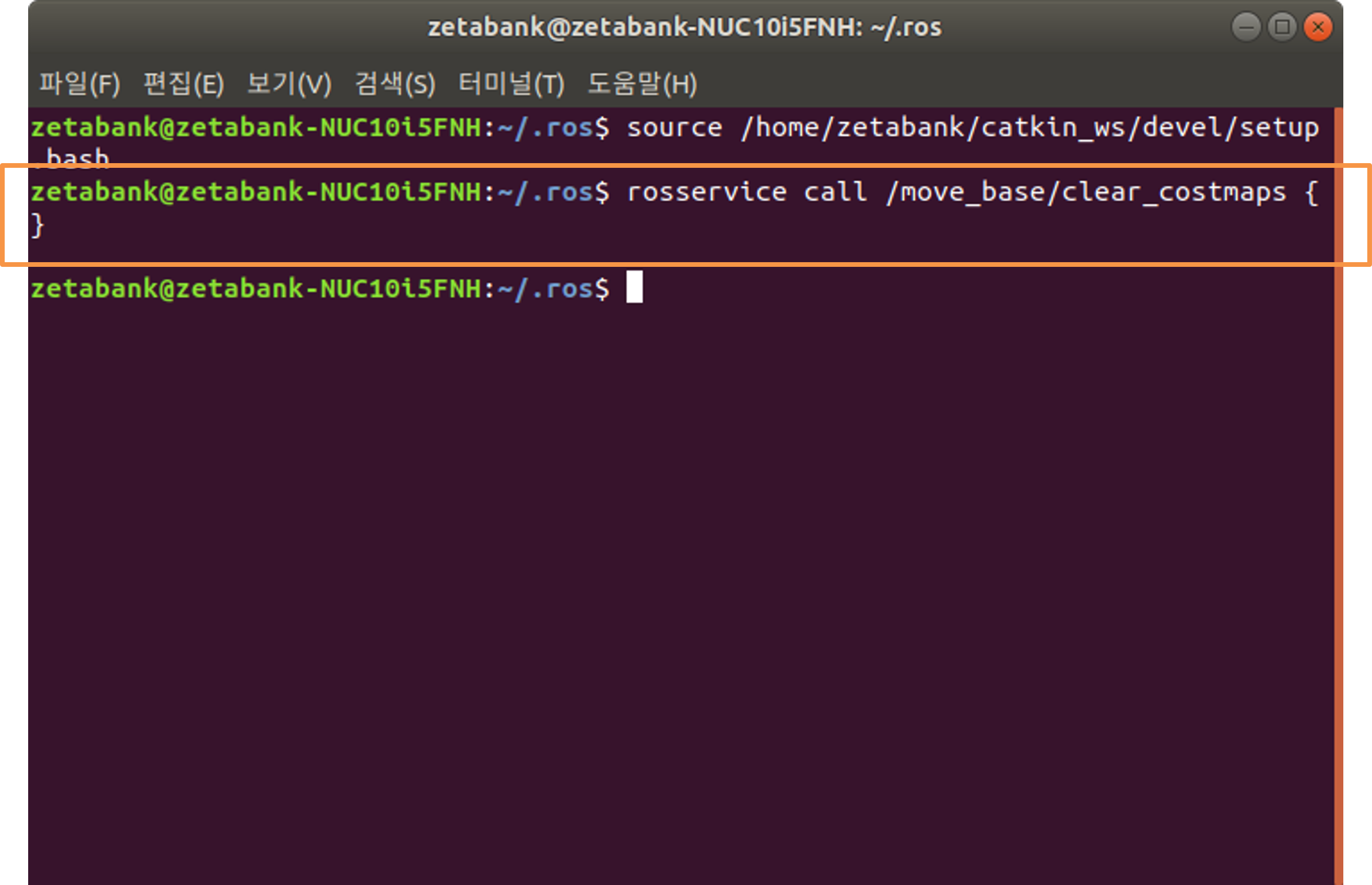
  • A command is automatically entered and executed in the terminal, and this command serves to clear the costmaps.
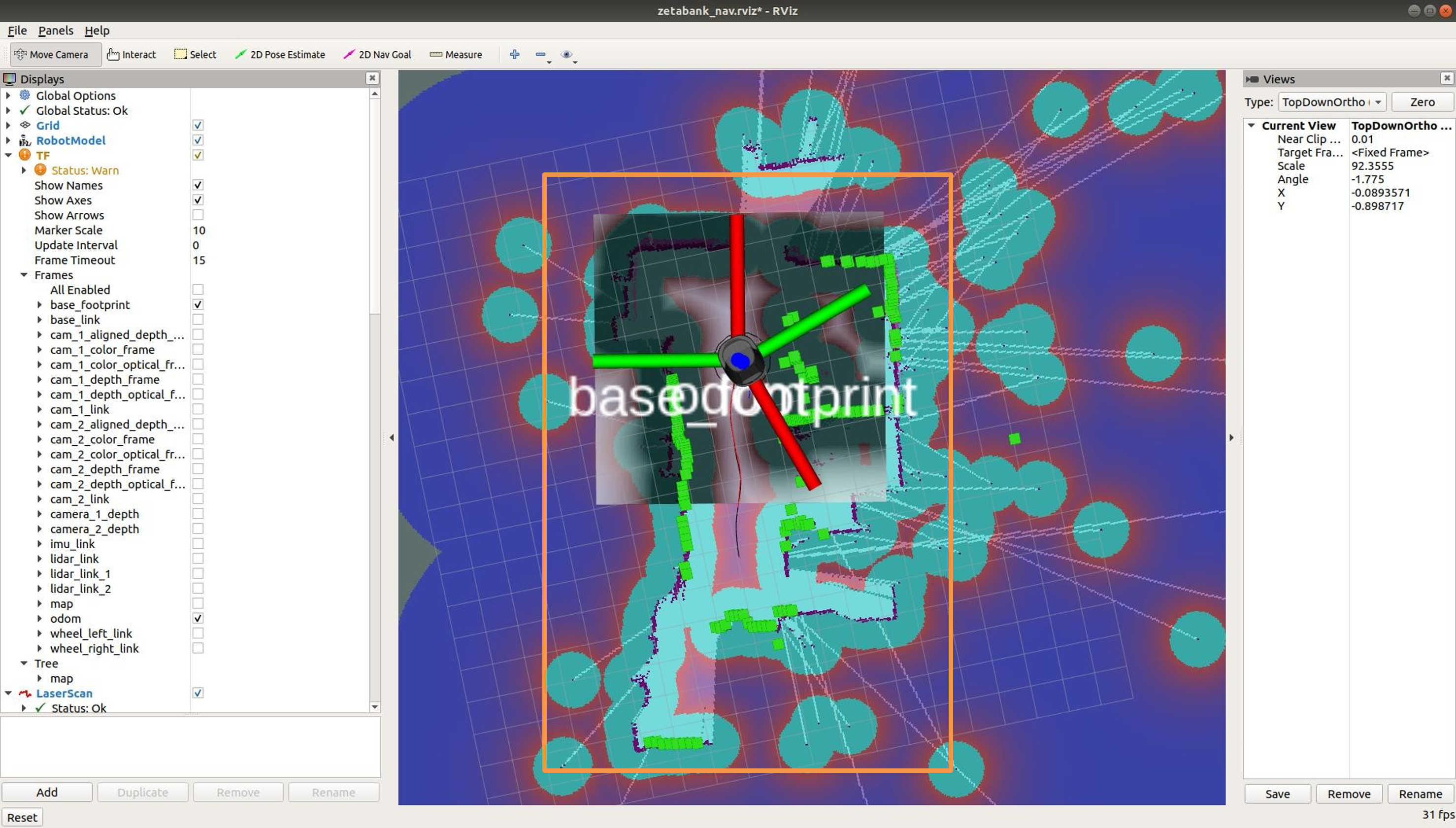

  • When costmap is cleared, it moves to name3 coordinates.


Go to name1 coordinates
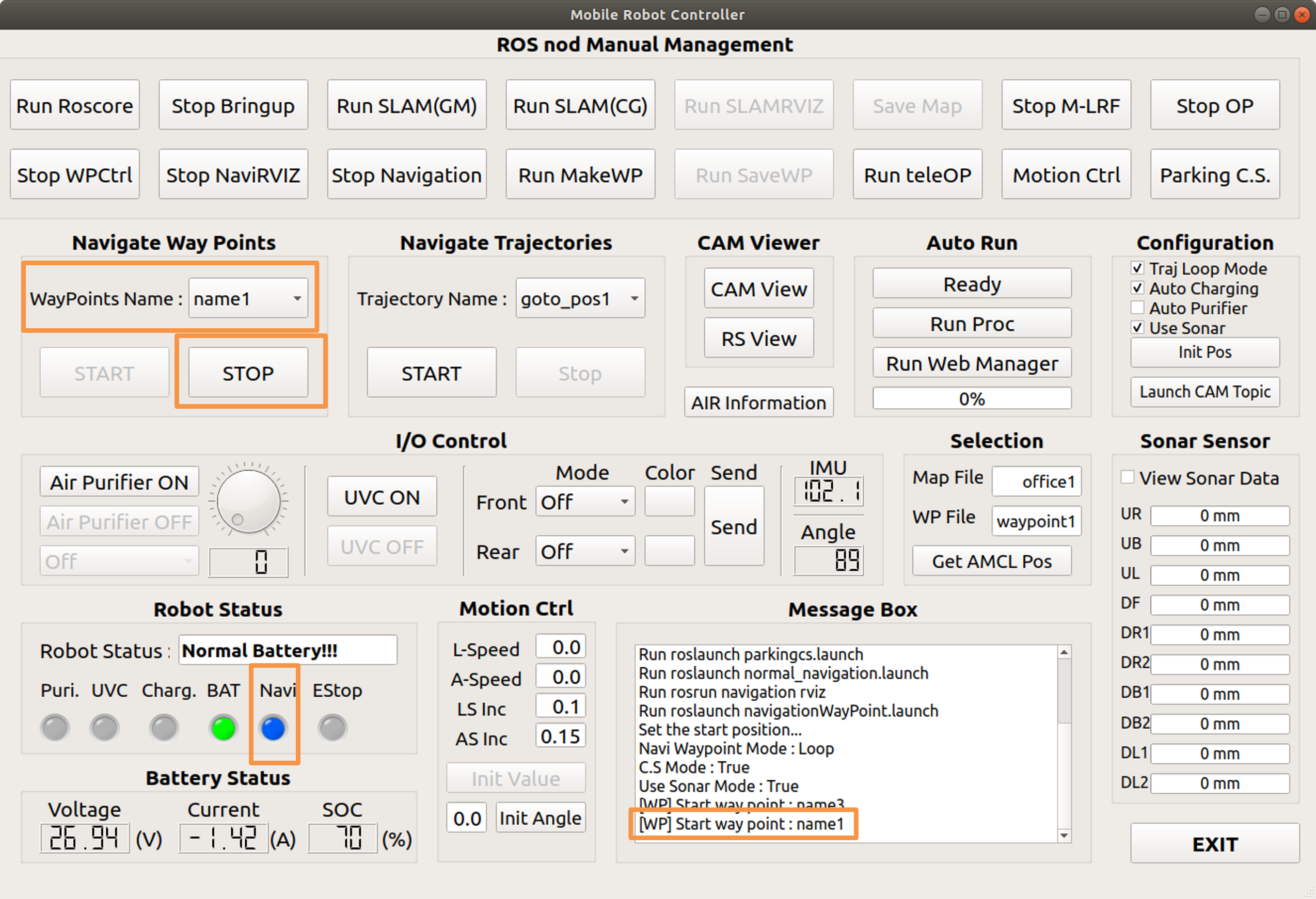
  • After selecting name1, press the start button.

  • The start button is disabled and the stop button is enabled.

  • It is displayed in the message box, and the LED color under the navi changes to blue.
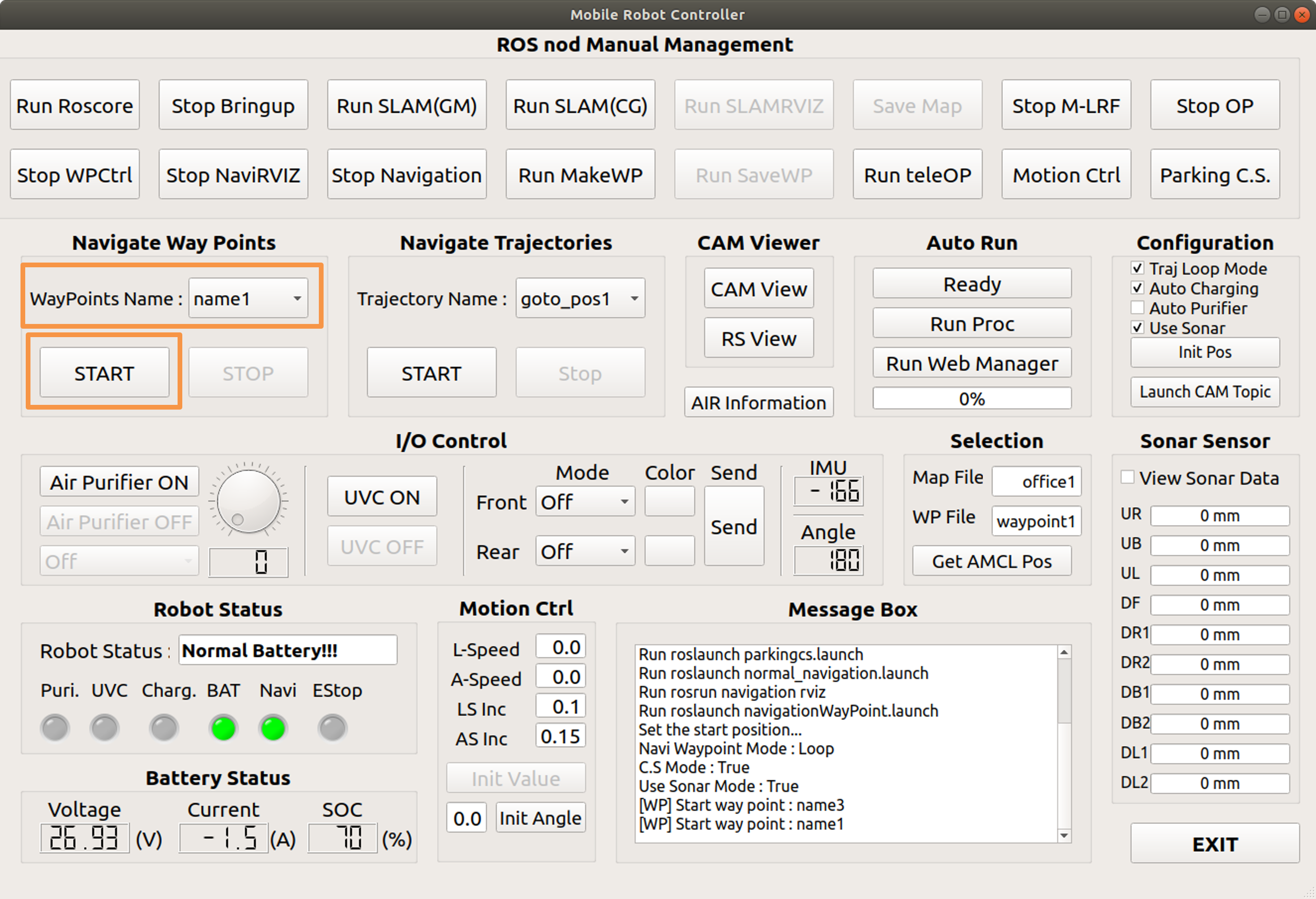

  • When you arrive at your destination, the start button is enabled and the stop button is disabled.

  • The color of the LED below the Navi will also change to green.
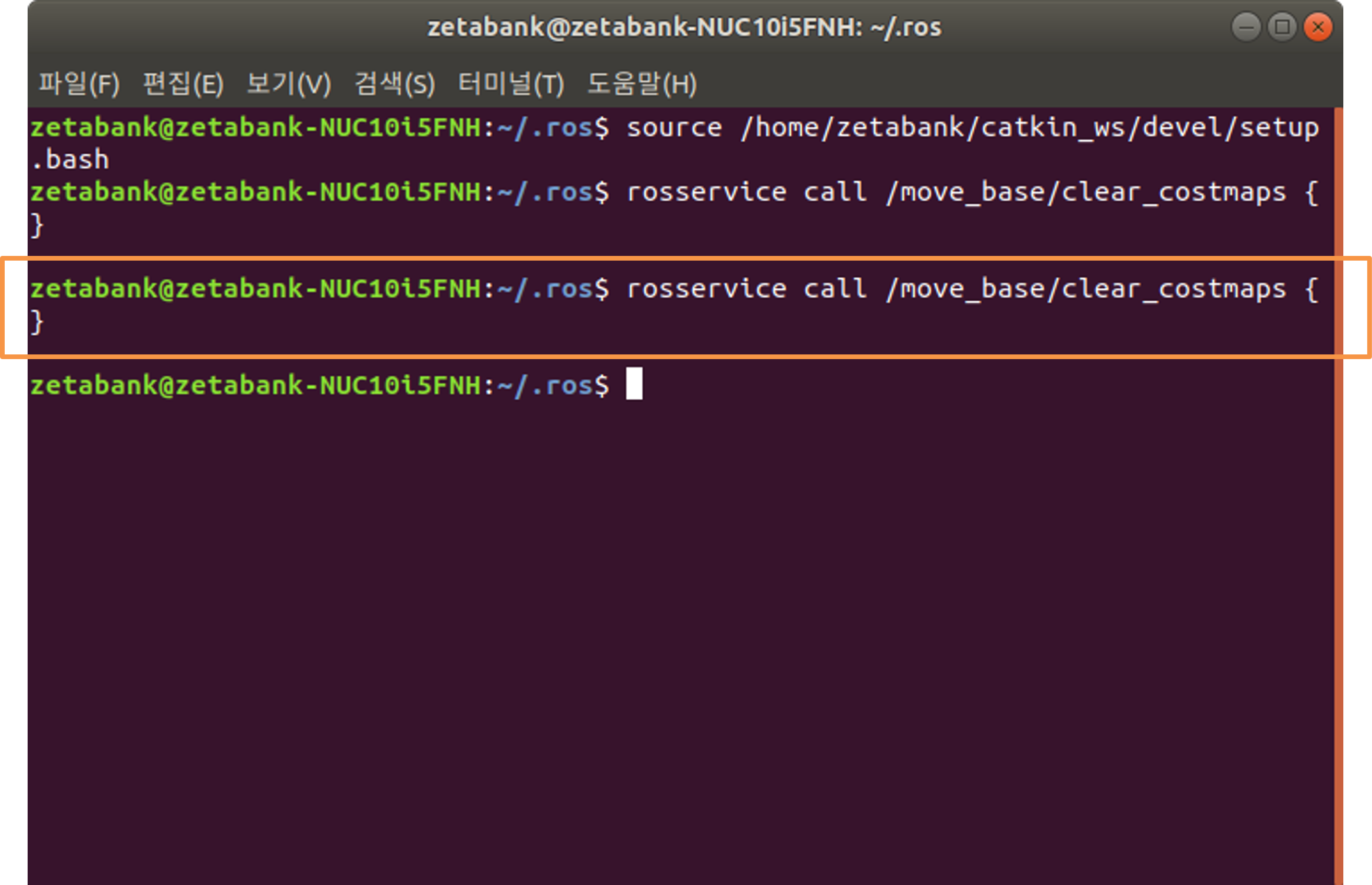

  • A command is automatically entered and executed in the terminal, and this command serves to clear the costmaps.
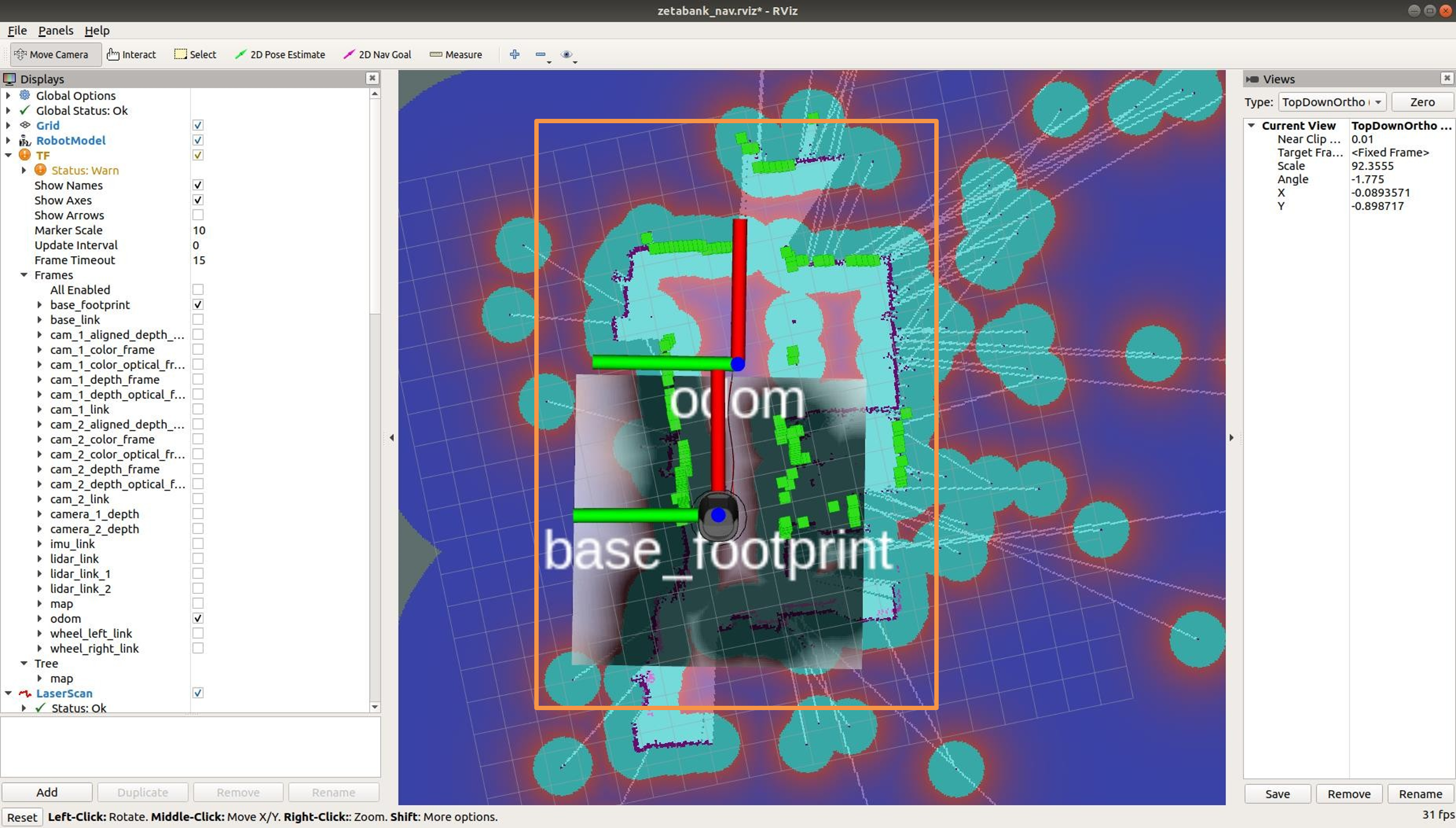

  • When costmap is cleared, it moves to name1 coordinates.

Previous Next

© Copyright . Revision 4810ce10.

Built with Sphinx using a theme provided by Read the Docs.